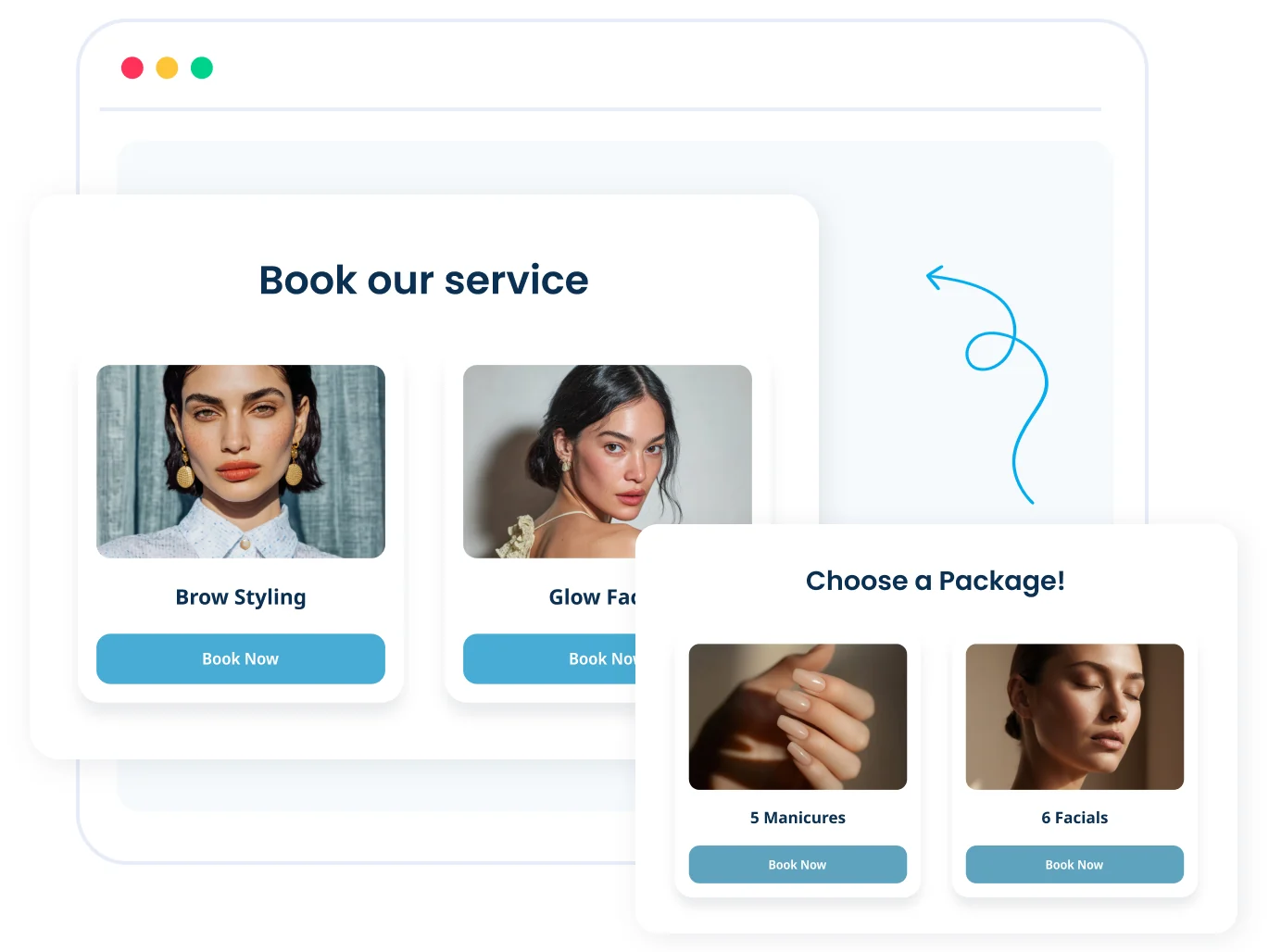
On your site: the booking widget
Paste one script tag into the site you built and clients book right there: services, slots, payments, confirmations and reminders, all handled.
Embed the widgetPaste one script tag into your site and clients book right on your page: services, staff, time slots, payments and reminders, all handled. Hand-coded, vibe-coded or on a site builder, it works the same way. Connect your account to Claude, Cursor or ChatGPT and you can manage it by chatting too.
A real booking system means a calendar, staff schedules, time zones, reminders, payments and no double-bookings. That is the part you do not want to hand-roll. SimplyBook.me handles all of it: your clients book through a widget on your site, and you run the account itself by chatting to your AI assistant.
Paste one script tag into the site you built and clients book right there: services, slots, payments, confirmations and reminders, all handled.
Embed the widgetConnect your SimplyBook.me account to Claude, Cursor or ChatGPT and manage it by chatting: add services and staff, adjust schedules, check bookings and pull reports.
Connect the MCPSimplyBook.me is an appointment scheduling platform used by over 100,000 service businesses in 100+ countries. It gives you everything you need to take bookings online and run your schedule. Both the widget you embed and the MCP connector your AI uses plug straight into it.
A branded page and widgets so clients book you online, on your website, or from social media.
A shared calendar for your team, with automated email, WhatsApp and SMS reminders that cut no-shows.
Take deposits and payments, sell packages, memberships and gift cards.
Intake forms, waitlists, recurring bookings, Google Calendar sync, and more, switched on when you need them.
SimplyBook.me gives you a ready-made booking widget. Generate it in your admin panel, copy the snippet, and paste it into your site. It handles the full flow: services, staff, time slots, payments, confirmations and reminders.
MCP (Model Context Protocol) is the open standard that lets AI clients talk to real apps. SimplyBook.me ships an MCP server, so Claude, Cursor, ChatGPT or Claude Code connect straight to your account and call it like a set of tools.
So your AI does the booking setup with you: creating services, setting hours, wiring up reminders and payments, and it keeps managing it once your site is live. No SDK, no API keys, no glue code. Paste one connector URL and sign in.
No build step. You need a SimplyBook.me account with rights to manage features, and an MCP client: Claude on a plan that supports custom connectors, Cursor, Claude Code, or any MCP tool. The screenshots below are from Claude. The steps are the same in every MCP client, only the menu names differ.
In your SimplyBook.me admin panel, open Custom Features, locate the feature named MCP and switch it on. Open its settings and the Admin AI Assistant section appears. That is the one this guide uses.
In the Admin AI Assistant section, copy the read-only connector URL. It is server-specific, so always grab the exact one shown in your panel rather than typing it from memory.
In Claude, open Settings, then Connectors, and choose Add custom connector. Give it a name and paste the URL. Same idea in Cursor or any MCP client: drop in the connector URL.
Sign in with your SimplyBook.me login, review the access screen, and click Allow access. Your client then shows the connector as connected.
Type what you want done, for example "what's on the schedule tomorrow?" Your assistant decides which tools to call and confirms anything destructive first.
Tip: teach your AI client. The Admin AI Assistant section has a Download instructions button. Drop that file into Claude as a Project (or a Skill, or into Cursor's rules) so it knows your setup and nails calls on the first try.
The connector exposes your booking system as a set of tools. Your assistant picks the right one from plain language, so you describe the outcome and it makes the calls.
List, create, move, reschedule or cancel bookings, and summarise them in plain language.
you › rebook last week's no-shows
assistant › 4 rebooked, confirmation messages sent
Look up a client by name, email or phone, pull their full history, and add or edit records.
you › pull up Rob Kaye's history
assistant › 9 visits, last on 3 Jun, 2 past no-shows
Set up and tweak services and team members, and adjust working hours, days off and special-day overrides.
you › give Marta Wednesdays off
assistant › Done, Wednesdays cleared from her schedule
Handle multiple business locations and sort your services into a tidy, grouped menu.
you › group all massage services under "Bodywork"
assistant › Category created, 5 services moved
Booking counts, revenue and trends, without a filter-builder or date pickers.
you › bookings this month vs last, by service
assistant › A month-over-month breakdown, per service
Update company info, toggle features on or off, search the help centre, or start a live chat with a human.
you › turn on the waitlist feature
assistant › Waitlist switched on and ready
Your assistant can only do what your own user account is allowed to do. If your role can't delete bookings in the admin panel, it can't delete them through the connector either.
The connector is a permission-limited key, not a backdoor. Turning it off never deletes anything: your bookings, clients and settings are untouched.
The connector inherits the permissions of the user account that approved it. It can never do more than that account is allowed to do in the admin panel.
Nothing connects without you signing in and clicking Allow. Auth happens on the sign-in screen, so your password is never shared with the AI client.
Disconnect it in your client, change your password, or turn off the MCP feature. Any one of these kills access at once, and none of them touch your data.
It is one standard connector, so it works with anything that speaks MCP. This guide uses Claude, and the flow is identical in Cursor, Claude Code, custom GPTs or the MCP testing tools: paste the URL, sign in, allow access. Connecting a different assistant? See the full guide to connecting any AI assistant to SimplyBook.me.
Spin up a free SimplyBook.me account, embed the widget on your site, and connect the MCP if you want your AI assistant to manage the account for you.
All product names, logos and brands are property of their respective owners. Claude is a trademark of Anthropic, PBC. Cursor is a trademark of Anysphere, Inc. ChatGPT is a trademark of OpenAI, OpCo, LLC. "Model Context Protocol" and "MCP" refer to the open protocol. Use of these names does not imply any affiliation with or endorsement by those companies.


