How to Connect Claude to Your SimplyBook.me Account (MCP Connector Setup Guide)

Link Claude to your SimplyBook.me account using the MCP connector, then manage bookings, clients, and schedules just by chatting. Here's the full setup walkthrough, plus prompts to try first.

How to Connect Claude to Your SimplyBook.me Account (MCP Connector Setup Guide)

How to Connect Claude to Your SimplyBook.me Account (MCP Connector Setup Guide)

Clicking through admin screens to check tomorrow's schedule or look up a client's balance takes time you don't have between appointments. If you already set up online booking and use Claude for other work, you can skip the clicking and just ask it.

To connect Claude to SimplyBook.me, turn on the MCP feature in your admin panel, copy the connector URL from the Admin AI Assistant settings, add it as a custom connector in Claude, and sign in to approve access. The whole process takes a few minutes and needs no coding. Once connected, Claude can check your schedule, book and reschedule appointments, look up clients, and more, all inside a normal chat.

What Is the SimplyBook.me MCP Connector?

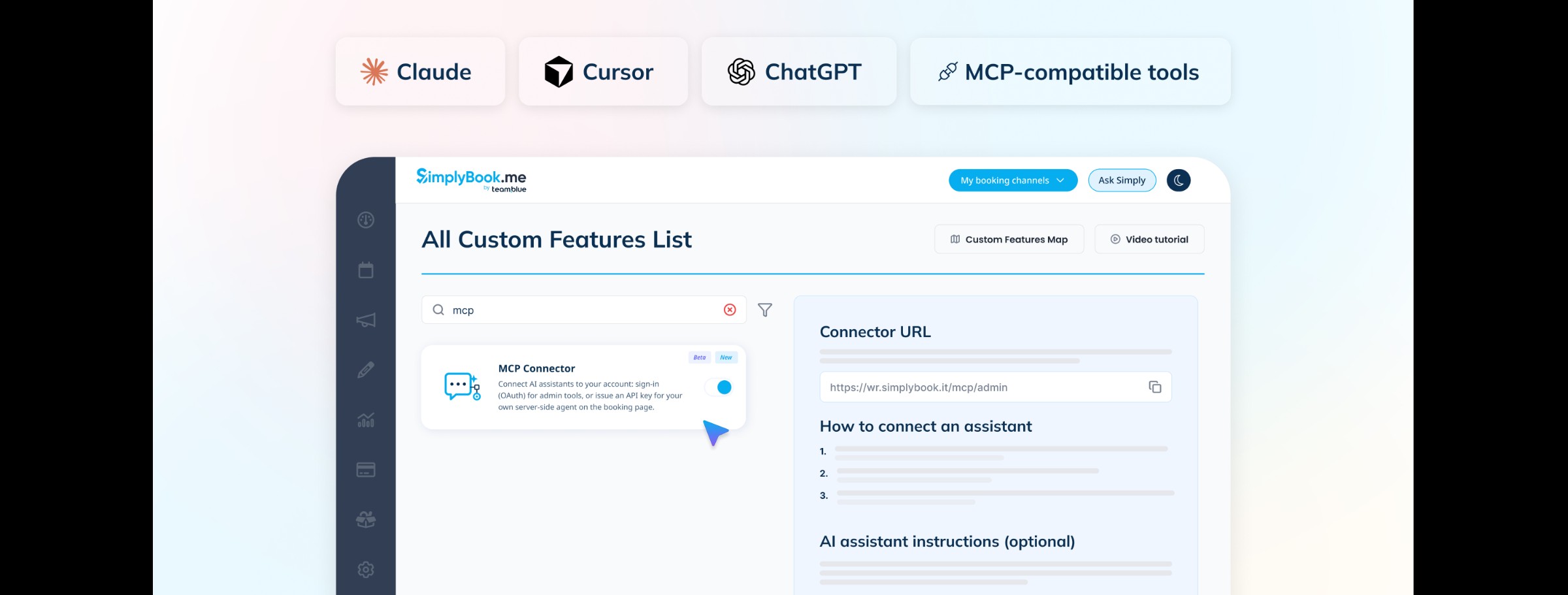
MCP stands for Model Context Protocol, an open standard that lets AI assistants talk to outside applications in a consistent way instead of needing a custom integration for every tool. SimplyBook.me speaks this standard through its MCP connector, a custom feature that gives an MCP-capable assistant, such as Claude, Cursor, or a custom GPT, direct access to your booking account.

Once it's connected, you describe what you want in plain sentences ("Book Jane for a haircut Friday at 3 with Anna") and the assistant carries out the action inside SimplyBook.me on your behalf. Anthropic has described MCP as a way to give AI systems reliable access to the data and tools they need, rather than building one-off integrations for every app. You can read more about the protocol itself on Anthropic's official announcement.

This guide covers connecting Claude specifically. The same connector works the same way with Cursor and other MCP-capable tools; ChatGPT uses a slightly different setup through custom GPTs, which we cover in a separate guide.

What Can Claude Actually Do Inside Your SimplyBook.me Account?

The connector exposes six areas of your account. Claude can only take actions your own user role is already allowed to take in the admin panel, nothing more.

Area What Claude can do Example prompt
Bookings View the schedule, find free slots, create, move, reschedule or cancel bookings "Move my 10am Tuesday booking to 2pm"
Clients Look up a client by name, email or phone, see history, add or update records "Show me Jane Doe's booking history"
Services & providers Add, edit or remove services and providers; change hours and days off "Add a therapist Marta, Tuesday and Thursday 10 to 17"
Locations & categories Manage business locations and organize the service menu into categories, useful if you run bookings across multiple locations "Create a category called Hair Services"
Money & reports View invoices, sales summaries and outstanding balances (requires the Accept Payments feature) "Which clients have an unpaid balance over €50?"
Settings & help Update company info, toggle features on or off, get help center answers "Turn on the waitlist feature"

Before You Connect Claude

You'll need:

  • A SimplyBook.me account with the MCP custom feature enabled (found under Custom Features in your admin panel).
  • A Claude account on a plan that supports custom connectors. According to the Claude Help Center, custom connectors are available on Free, Pro, Max, Team and Enterprise plans, though free accounts are limited to a single connector. Check your current plan's connector allowance before you start, since these limits can change.
  • No coding or technical setup on your side. If you can copy and paste a URL, you can do this.

How to Connect Claude to SimplyBook.me

5 steps

To connect

~5 min

Setup time

$0

Cost to enable

  1. Turn on the MCP feature. In your SimplyBook.me admin panel, go to Custom Features, find MCP, and enable it. Open its settings and you'll see the Admin AI Assistant section, this is the one this guide uses.
  2. Copy your connector URL. Inside the Admin AI Assistant section, copy the read-only Connector URL to your clipboard. Always copy the exact URL shown in your panel rather than typing it from memory.
  3. Add the connector in Claude. Open Claude, go to Settings → Connectors, choose Add custom connector, give it a name, and paste the connector URL. Confirm, and Claude opens a SimplyBook.me sign-in window.
  4. Approve the connection. Sign in with your normal SimplyBook.me email and password if asked, review the access screen, and click Allow access. Claude now shows the connector as connected.
  5. Start chatting. Ask Claude something like "What's on the schedule for tomorrow?" Claude decides which actions to take and asks for confirmation before doing anything significant.

Make Claude better on the first try

The Admin AI Assistant section has a Download instructions button. Paste that file into Claude as a Skill or Project instructions, and Claude gets noticeably better at getting things right the first time.

Prefer to watch it happen? SimplyBook.me's setup walkthrough on YouTube covers these same five steps end to end.

Prompts to Try First

You don't need to learn any special commands. A few starting points:

  • "How many bookings did we have last week?"
  • "What's on the schedule for tomorrow?"
  • "Book Jane for a haircut Friday at 3 with Anna."
  • "Which clients still owe money?"
  • "Add a 60-minute massage service at €80."
  • "Move my 10am Tuesday booking to 2pm."

If Claude can't fully satisfy a request, it will tell you rather than guess. That's expected: it works within your account's real data and your user role's real permissions, the same as if you'd clicked through the admin panel yourself.

Is It Safe to Give Claude Access to Your Booking System?

Connecting an assistant is designed to be safe and reversible:

  • Permissions are inherited, not expanded. Claude can only do what the user account that approved the connection can already do in the admin panel. If your role can't delete bookings manually, Claude can't delete them either.
  • You approve every connection. Nothing connects without you signing in to SimplyBook.me and clicking Allow access.
  • Nothing is deleted by disconnecting. Turning the MCP feature off never touches your existing bookings, clients or settings.
  • You can cut it off instantly. Disconnect the connector inside Claude, change your SimplyBook.me password, or turn off the MCP feature in Custom Features. Any one of these disconnects every assistant connected to your account at once.

MCP Connector vs. Ask Simply: Which Should You Use?

SimplyBook.me actually gives you two ways to run your account by chatting, and they're powered by the same underlying assistant capabilities.

Ask Simply (built in) MCP connector (bring your own)
Where it lives Inside your SimplyBook.me admin Inside Claude, Cursor, or another MCP-capable tool you already use
Setup Nothing to connect, open your account and start typing A few minutes: enable the feature, add the connector, approve access
Best for Businesses that want an assistant with zero setup Businesses that already live in Claude or another AI tool daily

There's no wrong choice here. If you don't already use an AI assistant day to day, Ask Simply needs no setup at all. If Claude is already open in another tab all day, the MCP connector brings your booking system to where you're already working, alongside your existing automated appointment reminders and other automations.

Frequently Asked Questions

Do I need to know how to code to connect Claude to SimplyBook.me?

No. The entire setup is copying one URL from your SimplyBook.me admin panel and pasting it into Claude's connector settings. There's no API key to generate and no code to write.

Does connecting Claude to SimplyBook.me cost extra?

MCP connector custom feature does not cost extra. You may enable it in your SimplyBook.me admin panel under Custom Feature tab. Your Claude plan is separate: check your current Claude plan's connector allowance, since Anthropic sets and can change those limits.

Can my whole team connect their own AI assistants?

Yes, each teammate with their own SimplyBook.me login can connect their own AI assistant. The assistant only ever gets the permissions of the account that approved it, so a staff member's assistant is limited exactly the way that staff member is limited in the admin panel.

What happens to my data if I disconnect the AI assistant?

Nothing. Disconnecting the connector, whether from Claude's side or by turning off the MCP feature in SimplyBook.me, only removes the assistant's access. Your bookings, clients, and settings stay exactly as they were.

Which AI assistants work with the SimplyBook.me MCP connector?

Any assistant that supports custom MCP connectors, including Claude, Cursor, and custom GPTs built on ChatGPT. The setup screens look slightly different in each tool, but the same connector URL and approval flow apply everywhere.

Start Chatting With Your Booking System

If you're already reaching for Claude throughout your day, there's no reason to keep switching back to a browser tab to check tomorrow's schedule or look up a client. Connect it once, and it becomes one more way to run the SimplyBook.me account you already have, alongside the over 100,000 service businesses in 100+ countries already using SimplyBook.me to manage their bookings.

Connect your first AI assistant

Turn on the MCP connector in your SimplyBook.me admin panel and start chatting with your booking system today.

Start Free Trial

Claude is a trademark of Anthropic, PBC. ChatGPT is a trademark of OpenAI OpCo, LLC. Cursor is a trademark of Anysphere, Inc. "Model Context Protocol" and "MCP" refer to the open protocol. Mention of these names does not imply affiliation with or endorsement by those companies.

Unlock exclusive content

Get booking tips, product updates, and inspiring stories to help you grow your service business — straight to your inbox